Visual workflows
How to choose an abstract background for a website hero
A striking abstract image is not automatically a good hero background. A hero has a job: introduce the product, make the headline easy to read and give the visitor a clear next step. The background should help those things happen.
Treat the image as part of the layout rather than a decoration added at the end. The most useful choice is often the one that leaves room for the interface, survives responsive cropping and still looks intentional when displayed smaller than the source.
Gabriel Tognon
Designer, Developer & Template Creator
· 5 min read
Worked example: one image, two cover crops
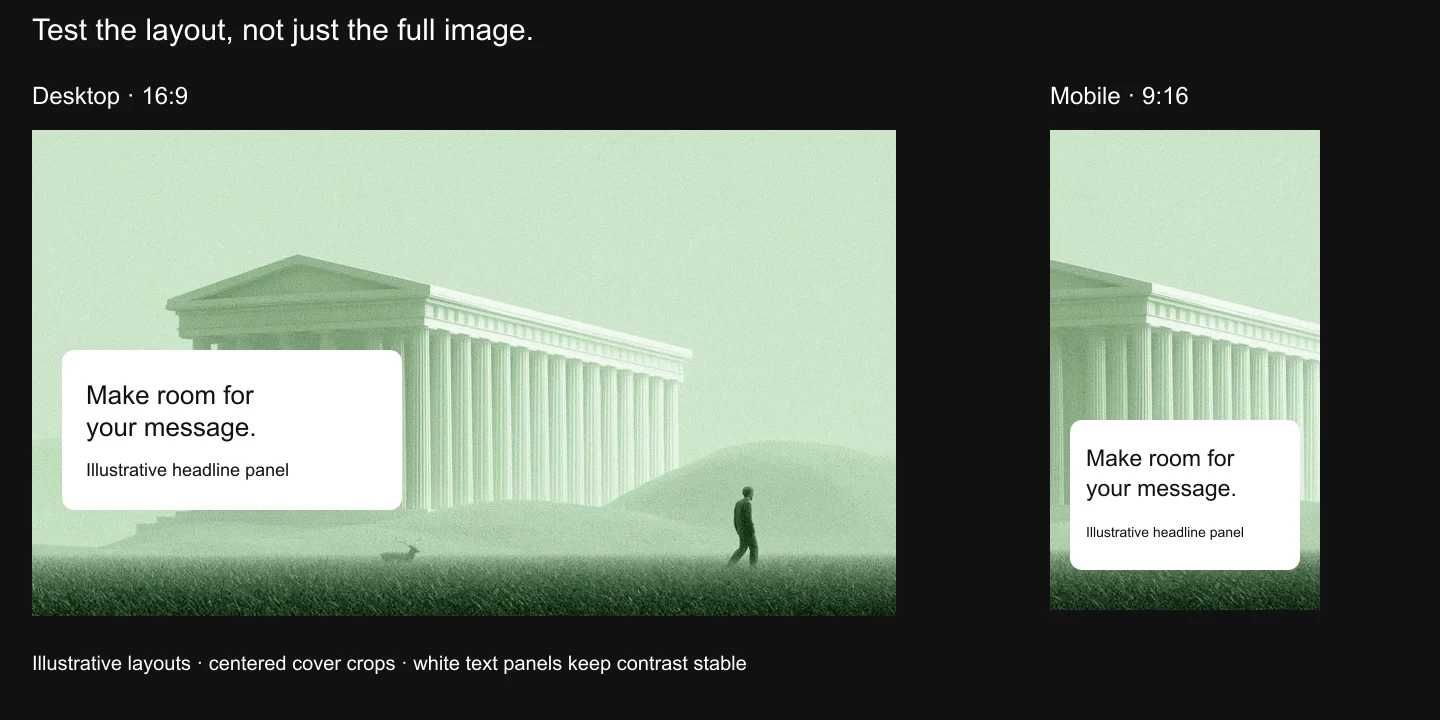
This illustrative layout uses the same ColorForge default export in a 16:9 desktop frame and a 9:16 mobile frame, both with a centered cover crop. It is a crop demonstration, not a shipped website template.
The source export is 1920 × 1074. The displayed desktop panel is 864 × 486 and the mobile panel is 270 × 480. The narrow crop loses much of the building even though it uses the same source. Decide whether to reposition the focal point or use a different mobile composition before committing.
Both example headlines sit on opaque white panels. Text #111111 against #FFFFFF has a WCAG relative-luminance contrast ratio of 18.88:1. That calculation applies only to these solid panels; it is not an accessibility audit of the website or a guarantee for text placed directly over the image.
Find room for the message
Look for an area that can hold the headline and supporting text without constant adjustments. That area does not need to be empty, but it should be visually calm enough for the message to remain dominant. If the most active shape falls directly behind the call to action, the image and interface may compete.
Try the real copy early. A short placeholder headline can fit a composition that fails once the product’s actual positioning is added. Test the button, navigation and any product screenshot together with the image.
Test the crop before choosing the file
An image that fills a wide desktop hero may lose its main shape in a narrow mobile crop. Test both placements before committing. Depending on the layout, moving the focal point or choosing a different crop may work better than shrinking the entire composition.
CSS object-fit: cover preserves the image’s proportions while allowing it to fill a box, which can crop part of the image. contain keeps the whole image visible but may leave unused space. Neither is universally better; choose based on whether the whole composition must remain visible. Background-image layouts have related sizing choices and need the same visual check.
Use dimensions as evidence
The Bytog CMS currently lists Soft Gradient 01 at 1456 × 816 and Liquid Chrome 01 at 2944 × 1648, both as PNG source assets. Those are source dimensions recorded in the catalog, not a claim that the webpage should download the entire original file.
Choose delivery dimensions from the intended placement and device density. A small card rarely needs the same resource as a large hero. Inspect the actual delivered file and rendered appearance instead of assuming a high-resolution source guarantees a fast or sharp webpage.
Separate visual style from interface contrast
Soft transitions, grainy surfaces and metallic forms suggest different visual directions, but the interface still needs a stable reading surface. Test the areas behind text at every relevant crop. If no reliable combination works, add a scrim, use a solid text panel or change the image’s placement.
For ordinary text, WCAG’s minimum contrast criterion is 4.5:1; qualifying large text uses 3:1, with defined exceptions. These are checks on the text/background combination, not on the attractiveness of the background. A single sampled color cannot prove that all text over a complex image is readable.
Keep motion purposeful
If the background moves, decide what the movement contributes. A subtle animation can establish a mood; a strongly changing bright area can repeatedly distract from the headline. Check a still fallback and reduced-motion behavior rather than relying only on the most impressive loop.
Bytog currently describes background animation as a ColorForge capability, not a separate asset category. That does not make every image a good animated hero. The same composition and readability decisions still apply.
Make a short comparison sheet
Place three candidate images behind the same headline, at the same hero dimensions. Compare the desktop and mobile crops side by side. Note whether each candidate needs an overlay, how much detail survives and what file is actually delivered.
This is more useful than browsing full-size images indefinitely. You are choosing a working layout, not the most interesting standalone picture.
Browse the visual collections, then explore ColorForge’s capabilities to adapt the chosen source. Check the current license before using an asset; this guide does not expand or replace its terms.
References: MDN object-fit, W3C text contrast guidance.
Explore the visual library or try ColorForge with the default image.
Related articles
Start with the whole library.
Choose yearly access or lifetime access, then browse, customize and export from one account.