Visual workflows
Dithering vs grain: choose the right kind of image texture
Dithering and grain can both make an image feel less smooth, but they are not interchangeable. Dithering uses patterns to represent tonal or color transitions with a constrained set of values. Grain introduces a noise-like texture. They may look similar from a distance while doing different work in the image.
That difference matters when you are choosing a treatment for a website background, a product visual or a small social graphic. The right choice depends on whether you want to change how tones are represented or add a surface texture to an otherwise smooth image.
Gabriel Tognon
Designer, Developer & Template Creator
· 5 min read
Worked example: hold the palette constant
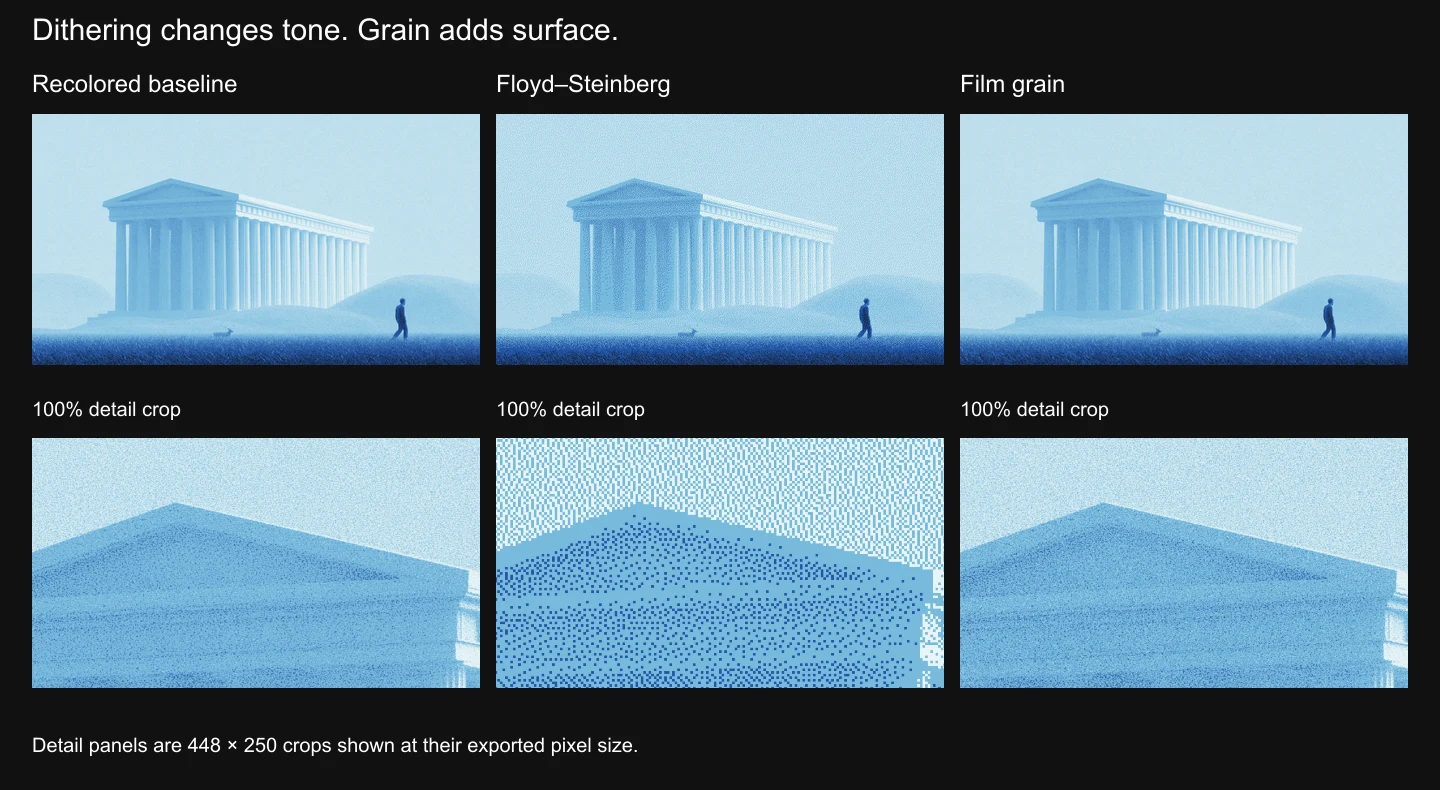
The baseline, dithered version and grain version use the same source, crop and four-stop blue recolor. The only change is the texture treatment. The lower panels are matching 448 × 250 detail crops; view them at their exported pixel size for a useful comparison.
The common Custom gradient palette is #111827, #2456A6, #77BADD and #E7F4F6, at positions 0, 33, 67 and 100 with strengths 100%, softness 100 and brightness, contrast and saturation 0. The dither export uses Floyd–Steinberg at strength 100 and pattern size 1. The grain export has Dither off and Film grain with Overlay blending, opacity 40, scale 50 and seed 42. The baseline has both treatments off. Other effects are off.
The source already contains fine texture. Grain adds more surface variation, while the dithered detail makes the restricted palette visibly patterned. This is why you should compare the actual export rather than assuming that every dotted treatment behaves alike.
What dithering changes
Imagine a smooth transition from dark to light. Rather than assigning a different tone to every step, a dithered treatment can arrange a limited set of values into patterns that suggest those intermediate tones. The pattern becomes part of the visual language.
Different approaches produce different distributions, from regular patterns to less regular arrangements. Do not assume all dotted imagery is the same algorithm, or that every dither filter works identically. Compare the actual result available in your tool.
Choose this direction when you want tonal structure to become visibly graphic: a controlled pixel texture, a more limited-looking palette or a deliberate contrast between smooth shapes and patterned shading.
What grain changes
Grain can give a polished image a less sterile surface. It can be subtle enough to notice mainly in broad flat areas, or strong enough to become a major part of the composition. Unlike dithering, a grain layer does not inherently mean that the image has been reduced to a small palette.
Choose grain when the color transitions already work and the missing element is surface character. Adding it is not a substitute for fixing an unbalanced palette or an awkward crop.
Compare at the final size
The most important comparison is not a zoomed-in editor view. Place both outputs at the size they will actually occupy. Fine texture can disappear after downscaling; larger patterns can compete with small type and interface elements. Resizing can also alter how a pattern looks, so inspect the exported file after it has passed through your site’s image pipeline.
For a large background, check the quiet areas as well as the focal point. For a small card, ask whether the texture still contributes anything at normal viewing distance. More visible texture is not automatically a stronger result.
Change one variable at a time
Keep the same source, crop and palette while comparing treatments. If you recolor one version, change its contrast and crop it differently, you cannot confidently tell which treatment caused the improvement.
A useful comparison has three panels: the untreated source, a dithered version and a grain version. Note the settings you actually used rather than inventing a universal “best” value. This makes the example repeatable and helps readers decide whether the effect suits their own image.
Protect readability
Texture should support the layout, not compete with it. Check headlines, fine dividers, icons and small UI labels over the image. If a treatment makes these harder to read, reduce its prominence, move the crop or give the interface a calmer surface.
It is also worth checking compressed outputs. A texture that looks restrained in the source can feel rougher or less predictable after resizing and compression. Keep the file size, appearance and placement in the same decision rather than treating export as an afterthought.
When to use both
Combining techniques can work, but begin with a clear reason. If dithering already establishes a strong pattern, grain may add little beyond visual noise. If the dither is restrained, a small amount of surface texture may help the result feel less rigid. Judge the combination against a simpler version.
Bytog’s dithering feature focuses on translating smooth imagery into controlled pixel texture. For an existing textured source, browse Grainy Surface. Start from the treatment that solves the actual visual problem, not the one with the most dramatic preview.
Technical reference for ordered/error-diffusion approaches: ImageMagick’s quantization documentation.
Explore image dithering or try ColorForge with the default image.
Related articles
Start with the whole library.
Choose yearly access or lifetime access, then browse, customize and export from one account.