Visual workflows
How to recolor an abstract background without flattening its depth
A background can match a brand’s colors and still feel wrong. The problem is often not the hue: it is the relationship between its dark, middle and bright areas. Replace those with colors that are too similar in brightness and a visual that once felt sculptural can become flat.
Recoloring works best when you treat the palette as a tonal system, not a list of favorite colors. The goal is to keep the structure that made the source useful while changing its mood.
Gabriel Tognon
Designer, Developer & Template Creator
· 4 min read
Worked example: two palettes, one source
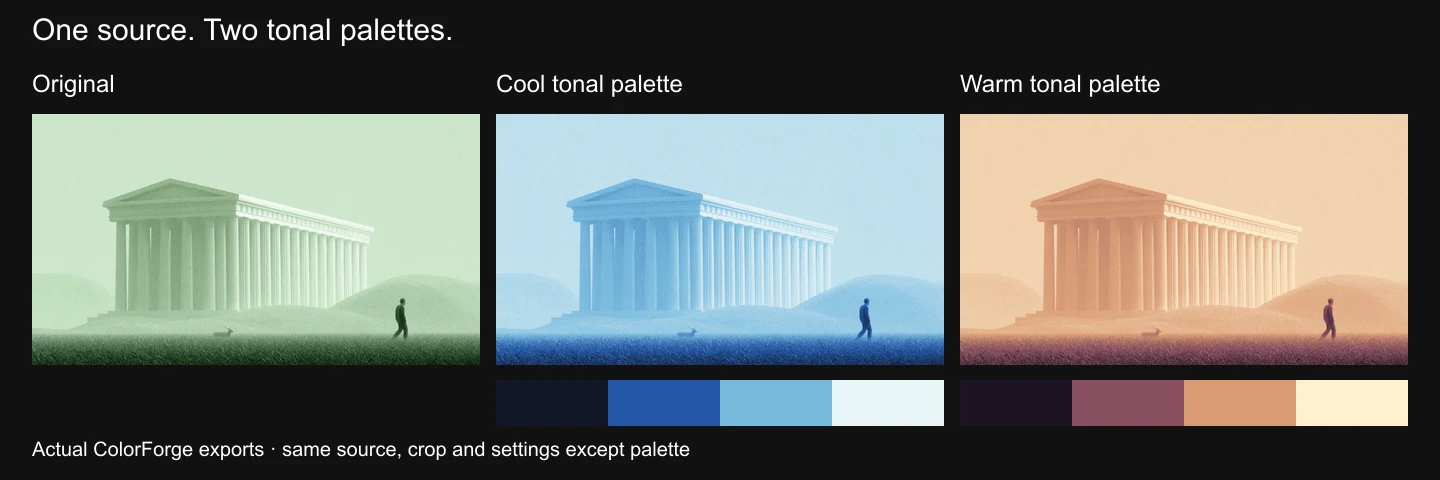
These are actual ColorForge exports of the default image: the original, a cool blue recolor and a warm recolor. The source and crop are identical.
Both recolors use Custom gradient with stops at 0, 33, 67 and 100, each at 100% strength. Transition softness is 100; brightness, contrast and saturation are 0. The blue palette is #111827, #2456A6, #77BADD and #E7F4F6. The warm palette is #1E1424, #895060, #D99C74 and #FFF0CF. Effects, Motion, Shader, Dither, Texture and ASCII are off.
Notice that the roof, columns and ground remain distinguishable in both versions. These are starting points for comparison, not universal settings for every source.
Start with the composition
Before adjusting colors, decide where the image will sit. A full-width hero, a small card and a social graphic have different needs. Look for a quiet area for the headline, a shape that survives the crop and a focal point that does not fight the interface.
If the source already has a crowded silhouette, a palette change will not necessarily make it a good background. Choose the composition first, then adapt its color.
Give each color a job
Begin with a compact palette: a dark anchor, one or two middle tones and a lighter highlight. These do not need to be black, neutral gray and white. A deep violet can anchor an image; a muted blue can carry the middle; a pale warm tone can define its brightest surface.
Avoid using every brand color equally. A strong accent is often more effective in a limited area than spread throughout the whole background. Also distinguish image colors from interface colors. A hue that looks good in an image may not provide enough contrast for a text label or button.
Preserve separation before refining the hue
Compare the broad tonal regions of the original and the recolor. Can you still distinguish the principal shape from the background? Are highlights doing useful work, or have they merged into the middle tones? Are the shadows deep enough to support the composition without swallowing its detail?
If the result feels muddy, try increasing the separation between the dark and middle colors before adding more saturation. If it feels harsh, soften that separation or reduce the role of the most intense accent. These are design checks rather than a fixed numerical recipe: different source images need different treatment.
Check the actual placement
A full-size editor preview can hide problems that appear in the layout. Put the image behind the real headline and view it at the intended desktop and mobile sizes. On mobile, the crop may place a bright highlight directly behind a word that was perfectly readable on desktop.
Use a contrast check for the actual text/background combinations. WCAG’s minimum text contrast criterion is 4.5:1 for ordinary text and 3:1 for qualifying large text, with exceptions defined in the standard. A textured or changing background needs careful checking across the region behind the text, not just one conveniently dark pixel. A solid text panel or scrim can be more reliable than trying to make every pixel of the image suitable.
Make variations deliberately
Save a small set of purposeful directions: perhaps a restrained version for content pages, a brighter version for a campaign and a darker version for a product hero. Changing several things at once makes it harder to identify what improved the image. Compare variations at the same crop and display size.
The useful result is not simply “the image is now blue.” It is “this version fits the brand, retains depth and supports the layout.” Bytog’s image-recoloring workflow is built around that same idea: change the palette while keeping the image’s structure useful.
Explore image recoloring, or start by browsing the collections.
Source for contrast thresholds: W3C’s explanation of WCAG 2.2 SC 1.4.3. No license or accessibility-compliance guarantee is made by this article.
Explore image recoloring or try ColorForge with the default image.
Related articles
Start with the whole library.
Choose yearly access or lifetime access, then browse, customize and export from one account.