Visual workflows
How to choose Soft Gradient backgrounds
Start with Soft Gradient when comparing atmospheric gradient imagery for a visual project. The placement of dark and bright areas matters as much as the palette: test a source behind your actual headline or beside your product screenshot before choosing it.
Gabriel Tognon
Designer, Developer & Template Creator
· 2 min read
Key Takeaways
Start with composition and reading space, then compare dark, middle and bright regions after recoloring. These sources are PNG images, not editable mesh-gradient projects.
Choose a Soft Gradient source
Compare source candidates
Compare the previews below at the same display size. Soft Gradient 01 and 02 are recorded at 1456 × 816; Soft Gradient 04 is recorded at 2944 × 1648. These are PNG source dimensions, not the dimensions or download sizes of the public WebP previews. Choose delivery dimensions for the placement instead of downloading a larger file by habit.
Soft Gradient 01 · 1456 × 816 PNG source
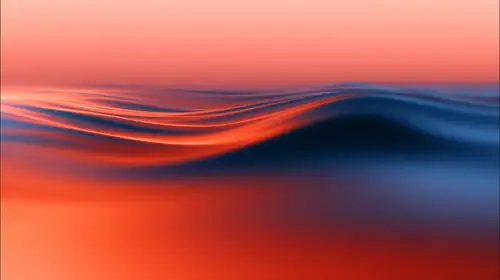
Soft Gradient 02 · 1456 × 816 PNG source

Soft Gradient 04 · 2944 × 1648 PNG source

Adapt the chosen visual
Read the tonal recoloring guide
Try ColorForge with public sample images
Are these editable mesh-gradient projects?
The selected source records are PNG images, not editable mesh projects.
How should I change the palette?
Compare the dark, middle and bright areas before and after recoloring. Keep the headline on a stable reading surface when it crosses several tones. Use ColorForge according to the image’s current access requirements.
Access and usage
Public previews help you choose a source; they do not unlock protected originals or expand the license. Follow the current plan and license terms before using an asset.
Conclusion
Browse Soft Gradient to compare the available images, then test the selected visual in your intended layout.
Related articles
Start with the whole library.
Choose yearly access or lifetime access, then browse, customize and export from one account.