Visual Workflows
Turn an image palette into useful design color roles
An image palette is a starting point, not a finished interface theme. First decide what each color needs to do: support the artwork, define a surface or draw attention to an action. Then add neutral colors where reading and navigation need stability. You do not have to use every extracted swatch, and the color covering the largest area of an image does not have to become your page background.
Gabriel Tognon
Designer, Developer & Template Creator
· 5 min read
Key Takeaways
Keep the source beside its swatches. Assign colors by purpose rather than by image coverage. Allow some colors to remain only in the artwork, label added neutrals honestly and test the same roles in a second real placement before expanding the palette.
Start with a real image, not an abstract color list
For this example, we used the public preview of Soft Mesh 01. Its broad blue fields, cyan transition and yellow corner give us related blues plus a warmer contrasting note. That combination can suggest a visual direction, but it does not tell us which swatch belongs on a button or behind a paragraph.
Keep the source visible beside the swatches. A palette strip loses the proportions, edges and relationships that made the image appealing. A bright color may work in the artwork because it occupies one corner, surrounded by quieter areas. Spreading it across navigation, cards and buttons is a separate design decision.
Our worked example: four representative swatches
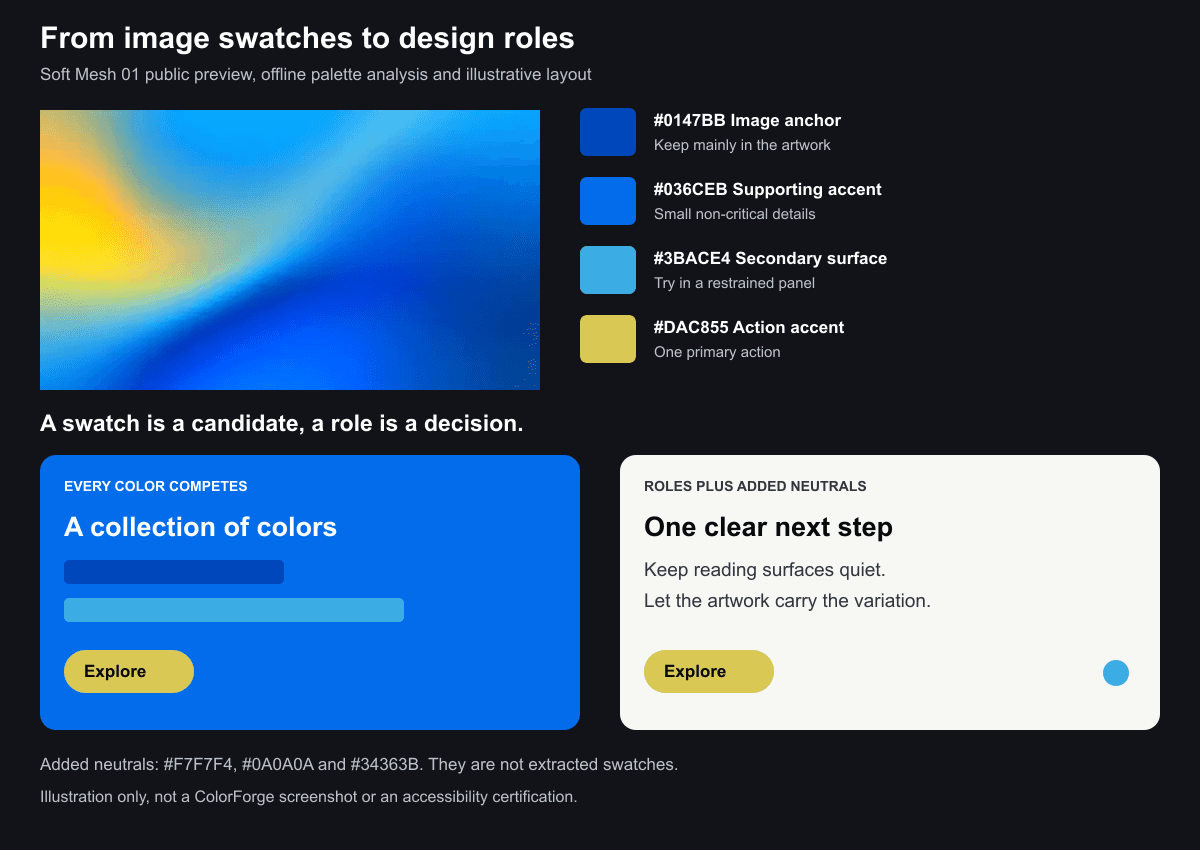
Illustrative editorial diagram, assembled offline on 19 October 2026 from the unchanged 500 × 280 Soft Mesh 01 public preview. The four representative colors are #3BACE4, #036CEB, #0147BB and #DAC855. The lower panels illustrate different role assignments, not a ColorForge interface or a measured usability comparison.
To make the palette reproducible, we resized the full preview to 125 × 70 using Lanczos3, grouped RGB values into 16-unit histogram bins and ran four-cluster, weighted RGB k-means for 30 iterations. The rounded cluster centers produce the four hex values above. These are averages, not four exact eyedropper samples. Another extraction method, crop or input file can return different swatches. This analysis is not a claim about ColorForge’s extraction algorithm.
Give each swatch one initial job
Keep #0147BB as the image anchor. In this example, the deeper blue can remain mainly inside the artwork, providing continuity without filling every surrounding surface. A color can belong to the visual system even when it is not repeated in the interface.
Treat #036CEB as a supporting accent rather than a second primary action color. Try it in a small decorative detail, then compare the page without that detail. If removing it improves clarity, leave it in the artwork instead. Including a swatch is not an obligation.
Consider #3BACE4 for a secondary surface or small graphic element. Before using it behind content, test the actual text, icons and boundaries at their intended sizes. A color that looks light in a swatch strip is not automatically a suitable reading surface.
Reserve #DAC855 as an action-accent candidate. The yellow-green differs from the blues, so it offers a useful direction to test for one primary button. Keep the button label explicit, and compare it against the surrounding page. The role is a hypothesis to validate, not a promise that this exact color will suit every layout.
Add neutrals deliberately
The quieter panel adds #F7F7F4 for its surface, #0A0A0A for its heading and #34363B for supporting text. Those neutrals were chosen for the illustrative layout; they were not extracted from the image. Naming that distinction keeps the palette useful rather than pretending the source contains everything the interface needs.
Start with the reading surface and the main action, then bring in the artwork. If you need several strong colored panels just to make every swatch appear, reconsider the assignment. It is reasonable for most of the image’s color variety to stay inside the image while the interface uses one accent.
Name the role, then test another placement
Record names such as page surface, heading text, supporting text and primary action alongside the chosen hex values. Avoid relying only on names such as blue one or yellow two. Role names explain why a color is there and make later changes easier to review across a second card, form or section.
Test the same roles with real content before adding more colors. Check whether the action remains clear, whether headings and body text are readable, and whether the artwork competes with them. If text overlaps the image, use a placement-specific check rather than judging a palette strip. Our gradient readability walkthrough covers that separate task.
Keep interface mapping separate from image recoloring
Assigning interface roles does not require recoloring the source. Once the page direction works, you can explore a different image palette in ColorForge while keeping the layout fixed. Changing both the interface roles and the image at once makes it harder to tell which decision improved the result.
If the image itself loses depth after a palette change, that is a tonal-mapping question rather than a reason to add more interface colors. See recoloring without flattening depth for that workflow. Use this palette-to-role exercise when the missing step is deciding how the artwork and the surrounding design should relate.
Conclusion
A useful palette becomes a system when the colors have clear jobs. Start with a stable reading surface, one action accent and artwork that carries the richer variation. Browse the collections for a source, then refine the relationship between that image and the design around it.
Related articles
Start with the whole library.
Choose yearly access or lifetime access, then browse, customize and export from one account.