Visual workflows
How to keep text readable over a gradient background
A gradient can look calm at a glance and still put a bright highlight directly behind one word. Instead of judging the image as a whole, test the exact space your headline will occupy. A small, local contrast adjustment is often easier to control than recoloring a source that already fits the design.
Gabriel Tognon
Designer, Developer & Template Creator
· 5 min read
Key Takeaways
Place the real headline over its final crop, test the background directly beneath it and adjust only that reading area. Recheck every breakpoint and use contrast measurements as a screen, not a substitute for inspecting the finished page.
Test the placement, not a convenient pixel
Start with the real headline, its type size and the actual crop. Mark the area the letters will cover, including the space needed if the copy wraps on a narrow screen. A desktop composition may leave a dark corner for text while its mobile crop moves a pale glow underneath it.
A single color sample or an average across the whole image can hide the problem. Gradients often contain both very dark and very light regions. Check the background immediately behind the text, especially the brightest or most contrasting part that crosses a letter. Repeat the check after changing the crop, copy or breakpoint.
A controlled preview test
These three public Bytog previews are 500 by 280 pixels. For this offline calculation, each was resized to 360 by 202 using Lanczos3. We sampled a 332 by 78 rectangle beginning 14 pixels from the left and 72 from the top, covering 25,896 pixels. For each background pixel, we calculated contrast against white before and after a rectangular 55 percent black overlay, using continuous sRGB alpha compositing.
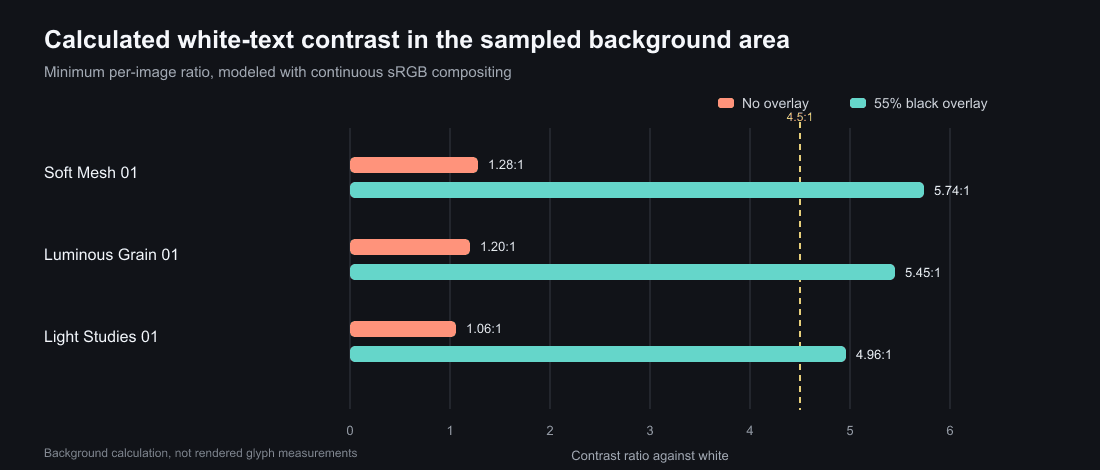
The bars show calculated minima for that fixed background region. The source previews below are unchanged. The 4.5:1 line is an ordinary-text contrast reference, not a finished-page result.

Soft Mesh 01: the lowest white-to-background contrast in the sampled area increases from 1.28:1 to 5.74:1 with the modeled 55 percent black overlay. The calculation covers background pixels rather than rendered letter shapes.

Luminous Grain 01: the calculated minimum increases from 1.20:1 to 5.45:1 with the same overlay. The preview shows why a soft or textured gradient still needs a check at the exact reading area.

Light Studies 01: the calculated minimum increases from 1.06:1 to 4.96:1. These results apply to the public previews and the stated sample region, rather than the 6K originals or a finished webpage.
Separately, a 55 percent black overlay over pure white produces a theoretical contrast floor of about 4.76:1 against white text under this compositing model. That bound is lower than the per-image results above and is not one of their calculated minima. Actual rendering can differ, so recheck the final page.
Add the smallest adjustment that solves it
If the text is hard to separate from one bright band, first move the text or choose a different crop. If that does not work, add a scrim behind the text rather than darkening the entire visual. A gradient overlay can preserve more of the composition when the background changes across the headline, while a compact translucent panel gives the text a more stable surface.
Try a few opacity steps and compare them at the actual display size. Use the lowest strength that supports the text without flattening the visual or changing its mood. A scrim can also be light instead of dark when the design calls for dark text, but check the actual color pair instead of assuming the inverse treatment will work.
For ordinary text, WCAG 2.2’s minimum contrast criterion is 4.5:1. Qualifying large text has a 3:1 minimum, with defined exceptions. The threshold applies to the foreground and its background, not to the overall image. Use the right text size and weight, and evaluate the final rendered combination; a pixel sweep over a broad zone is deliberately more conservative than checking only the letter shapes.
Repeat the check after every meaningful change
Test the final headline at each layout breakpoint, including a wrapped version if the text changes line. Check the actual crop and overlay together. If the image is animated, inspect frames where the brightest area crosses the text, and provide a stable fallback when the motion stops.
Keep the test reproducible: note the asset name, crop, headline area, text color and scrim opacity. When you compare a recolored variation, keep the layout and text fixed so you know the image change caused the difference. Bytog’s released ColorForge workflow can help explore image palettes, but the final text surface still needs to be checked in the page where it will appear.
Browse the gradient collections for a starting image, or use ColorForge to explore a different palette. For a broader crop and layout comparison, see how to choose an abstract website hero.
Contrast reference: W3C guidance for WCAG 2.2 Success Criterion 1.4.3. The examples use public 500 × 280 previews and do not assess the full-resolution originals or a finished website.
Conclusion
A gradient does not need to become flat to support a headline. Keep the visual that works, locate the exact conflict and add the smallest local change that restores separation. Then check the real text, crop and layout together.
Related articles
Start with the whole library.
Choose yearly access or lifetime access, then browse, customize and export from one account.