Visual workflows
How many pixels does your website image need?
Keep a large source for flexibility, but choose the website version from the space it must fill. A 6K download is not automatically the right file for a small card. Start with the placement dimensions, decide which display density you are testing, then check whether the crop has enough source pixels.
Gabriel Tognon
Designer, Developer & Template Creator
· 5 min read
Key Takeaways
Plan from CSS placement dimensions and a tested density factor. Check the pixels remaining after the crop. Keep the master separate from delivery versions, then measure the resource actually loaded.
Separate the source from the delivered version
A source file is your editing master. A delivered version is the image a visitor loads for a particular placement. Those files can have different dimensions without making the master less useful. Keeping the original gives you room to crop and produce new versions later; sending that entire original to every card is a separate decision.
Use exact dimensions when planning. The Soft Mesh 01 sample used here is 5888 × 3296 pixels: 19,406,848 pixels in total. A rounded label such as 6K is convenient shorthand, but it does not tell you the aspect ratio, the useful crop, the encoded file weight or whether the source itself contains visible artifacts.
A practical starting calculation
Multiply the placement width and height in CSS pixels by the display-density factor you want to test. For a section displayed at 1440 × 800 CSS pixels, a 2× candidate is 2880 × 1600 image pixels. For a 400 × 300 card, the corresponding candidate is 800 × 600. These are planning examples, not required dimensions for every website.
The browser’s devicePixelRatio describes the relationship between physical and CSS pixels. A 2× candidate is a useful test, not a promise that all visitors have the same screen or need the same resource. Compare candidates in the actual layout before settling on delivery sizes.
Worked example: one public sample, three placements
We downloaded the already-public Soft Mesh 01 sample and checked its 5888 × 3296 dimensions. Using that same source, we produced a 2880 × 1600 wide version, an 800 × 600 landscape card and a 720 × 1280 portrait version. The portrait represents a 360 × 640 CSS-pixel placement tested at 2×. Colors and effects were unchanged.
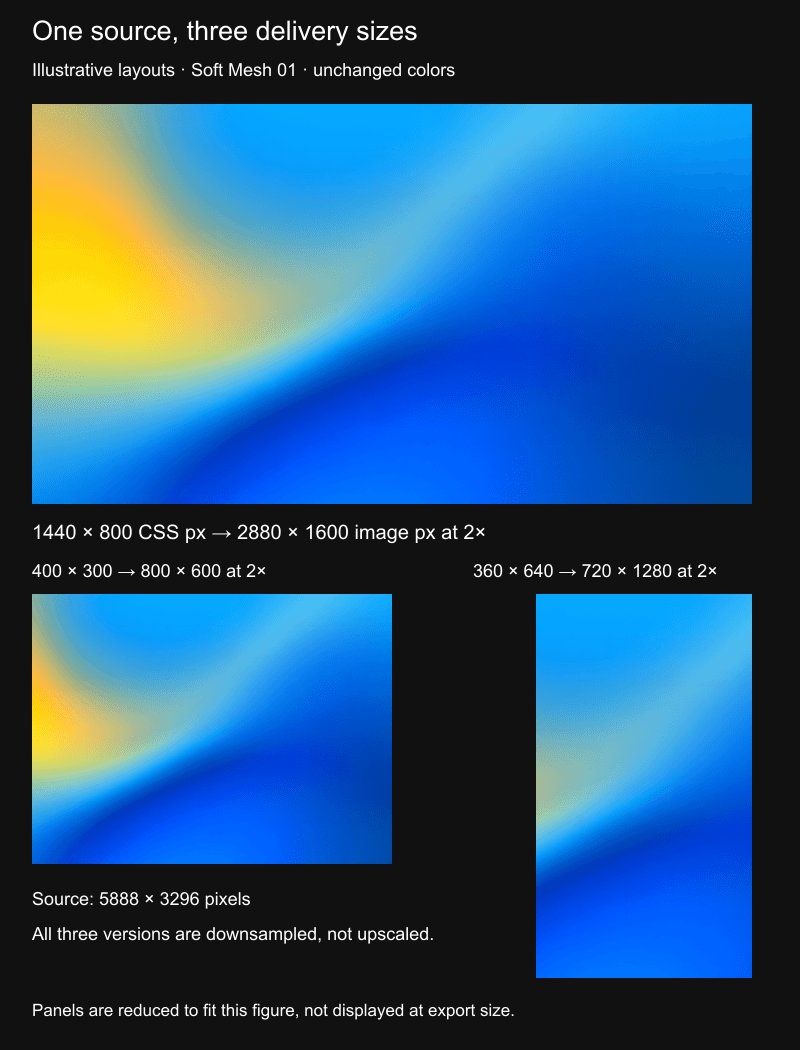
Sizing demonstration prepared on 15 October 2026. All outputs use a centered cover crop, Lanczos3 downsampling and PNG encoding in Sharp, outside ColorForge. No recoloring, grain, sharpening or generative edits were applied. The figure is illustrative, not a screenshot of a shipped layout or a set of ColorForge export presets. Its panels are reduced again to fit the article.
The wide export contains 4,608,000 pixels, the card 480,000 and the portrait 921,600. That is less pixel data than the 19.4-million-pixel source, but pixel count alone cannot predict transfer size. Compression, format and visual complexity also affect encoded bytes. Do not turn those pixel reductions into an assumed bandwidth saving without measuring the actual delivered files.
Count pixels after the crop, not before it
A wide source can have plenty of pixels overall while leaving a much narrower region for a portrait. A centered 9:16 crop using all 3296 pixels of this sample’s height has about 1854 pixels of usable width. That exceeds the 720 × 1280 target, so this example can be downsampled without enlarging its source crop.
This check becomes important when the focal point occupies only a small portion of the image. If your chosen crop is 500 pixels wide and the delivery target is 1000, enlarging it cannot recover source detail that was never there. Choose a wider crop, a different source or a smaller placement instead of relying on a large resolution label.
Offer different sizes without changing the master
For ordinary image elements, responsive image sources let a site offer multiple resources with size information. Keep the declared layout sizes accurate and inspect the resource the browser actually selects. CSS background images use different delivery controls; do not assume that adding image-element attributes configures a background automatically.
Treat a changed composition separately from a changed resolution. A smaller file with the same crop solves a sizing problem. A portrait crop that moves the main shape solves a composition problem. Both may be necessary, but swapping dimensions alone does not guarantee that a desktop composition will work on a phone.
Check the output where it will be used
Place the candidate behind the real interface, at the intended dimensions. Check a phone and a wider display, keep browser zoom consistent, and inspect the loaded resource rather than only the file you uploaded. Compare important edges, smooth transitions and textured areas. A larger file may preserve more detail, but it does not automatically improve the design or remove artifacts already present in the source.
Keep two records: the original dimensions for future editing and the actual delivered dimensions and bytes for the website. This makes later changes easier to explain. If a small card looks soft, you can check the selected resource and display size instead of replacing the entire asset library with bigger files.
Choose the smallest useful version, not the smallest possible one
Start with a source that gives you enough crop flexibility, then compare delivery candidates in context. Explore Soft Mesh for smooth abstract starting points, or use ColorForge to adapt a sample’s color before preparing its website versions. For the composition decision, read the website hero background guide. For texture that changes after reduction, see why grain changes when resized.
Reproduction method: Sharp’s resize documentation describes the cover fit, crop position and Lanczos3 kernel used in the offline example. Website delivery and performance were not benchmarked by this demonstration.
Conclusion
A large original is useful editing headroom. A website image should be sized for its placement, verified after cropping and judged in the actual page—not chosen only by its K label.
Related articles
Start with the whole library.
Choose yearly access or lifetime access, then browse, customize and export from one account.