Visual workflows
Why grain texture changes when you resize an image
Grain can look clear in an editor and almost disappear in a small card. That does not automatically mean the export failed. Resizing changes how many pixels describe each speck of texture. Judge the image at its intended placement before adding more grain.
Gabriel Tognon
Designer, Developer & Template Creator
· 5 min read
Key Takeaways
Fine grain can become less visible when an image is reduced. Compare equal viewing conditions before blaming export quality. Tune opacity and scale separately, then check the real placement.
Small texture needs enough pixels to survive
A grain pattern contains quick changes between neighboring light and dark pixels. When an image becomes smaller, the resize operation must represent that information with fewer pixels. Fine variations can blend together, making the result appear smoother. Larger clusters remain easier to distinguish. The architecture or big color shapes may still look clear while the delicate surface changes.
Consider a mark roughly four source pixels wide. At half the image width, its footprint is about two output pixels; at a quarter, about one. That is a scale illustration, not a guarantee that any individual mark will survive. Its contrast, neighboring colors and the resizing filter also matter. Increasing opacity changes contrast; it does not replace missing spatial detail.
One real export, two smaller versions
For this comparison, we used the already-public ColorForge default architectural sample and one actual Film grain PNG export at 1920 × 1074 pixels. We then resized that same file to 960 × 537 and 480 × 269 pixels with Lanczos3 resampling, keeping PNG output. No grain, recolor or sharpening settings changed between the two versions.
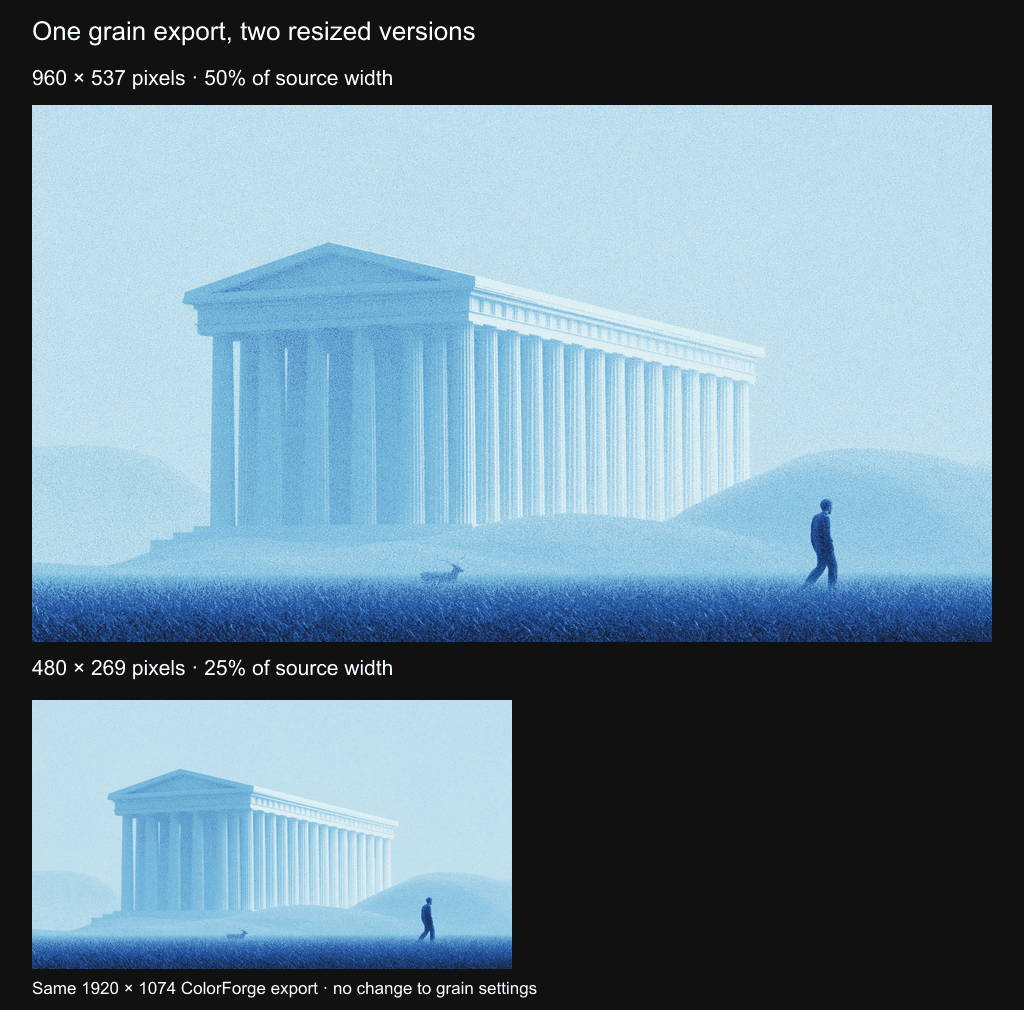
Example prepared on 14 October 2026 from a ColorForge export made on 13 October. Source artwork generated in Midjourney for visual-style exploration. Film grain: Overlay blend, opacity 40, scale 50, seed 42. Custom gradient: #111827, #2456A6, #77BADD and #E7F4F6 at positions 0, 33, 67 and 100; strengths and softness 100. Brightness, contrast and saturation adjustments 0; dithering and other effects off. The two smaller files were created outside ColorForge for this controlled comparison, not as new export presets.
The larger version shows more of the fine speckling in the pale sky and building surfaces. In the smaller version those areas look quieter, while the darker foreground still has a stronger textured impression. This is a visual observation from this example, not a measured rule for every image. The figure itself also scales with the article width, so open it separately to inspect its pixels more closely.
Separate file size from display size
An image that is 1920 pixels wide does not necessarily occupy 1920 pixels across the screen. A website might place it in a 480 CSS-pixel card. The browser still has to scale the image for that placement, even if you uploaded the original file. A high-density display uses more physical pixels per CSS pixel, which can also change how fine detail appears.
That is why a large export viewed at 100% and the same image fitted into a browser card are different tests. Keep browser zoom consistent, check the actual card or hero, and compare on the displays that matter for the project. MDN explains the distinction between physical and CSS pixels; it does not imply that one export dimension will look identical on every screen.
A practical adjustment order
First, place the image at the size where someone will use it. Check one quiet light area, one dark area and an important edge. If grain is too faint everywhere, try a small opacity increase. If it remains fine dust at a large zoom but vanishes in the actual placement, experiment with the texture scale instead. Change one control at a time and compare a fresh export in the same layout.
Do not compensate by pushing every setting upward. A stronger grain layer can distract from edges or make smooth shading look rough. The goal is a convincing surface at normal viewing distance, not maximum visibility in an enlarged preview. Keep the earlier version so you can compare without relying on memory.
If the image must serve both a wide hero and a tiny card, test both. A single treatment can be acceptable, but it need not produce equally obvious grain in every placement. When texture is central to the design, separate versions tuned for those placements may be more useful than forcing one file to do everything.
Before you call it an export problem
Compare the exported file with the editor at similar displayed dimensions. Then check the file after the website or publishing platform has processed it. If texture is present in the local file but missing online, inspect which image version is being served and how large it is displayed. If the file already looks wrong locally, investigate the treatment or export before changing website settings. This comparison narrows the cause; it does not identify it automatically.
In short: preserve a useful source, tune grain at the final viewing size, and verify the exported result in context. More pixels preserve room for detail, but they do not prevent resizing from changing the appearance of fine texture.
Try the workflow with your visual
Use ColorForge to compare a recolored image with a Film grain treatment, then review the output in your actual placement. For a textured starting point, explore the Grainy Surface collection. If you are choosing between two different techniques, read dithering versus grain before deciding which surface fits your design.
Resize method for this example: Sharp’s documented Lanczos3 downsampling kernel. No lossy encoding was added to the comparison files.
Conclusion
Texture is a viewing-size decision, not just an editor setting. Keep the source, compare controlled versions and choose the treatment that works where the image will actually appear.
Related articles
Start with the whole library.
Choose yearly access or lifetime access, then browse, customize and export from one account.