Visual workflows
Make an asset contact sheet before choosing your background
A contact sheet puts a small group of images on one surface so you can compare them without remembering a sequence of separate previews. Use it to reduce a catalogue to a shortlist, not to approve the final image. Keep each source at the same display size, preserve its full frame and attach the exact asset name before deciding which candidates deserve a closer look.
Gabriel Tognon
Designer, Developer & Template Creator
· 5 min read
Key Takeaways
Give the sheet one brief, use equal full-frame previews and label every asset precisely. Eliminate candidates for specific reasons, then inspect the shortlist in the real layout and at the intended output size.
Give the sheet one decision to support
Start with a short brief: the placement you are choosing for, the part of the composition that matters and one constraint. For example, you might need a predominantly cool background with a broad transition rather than a concentrated bright streak. That gives you a reason to eliminate candidates beyond simply liking their current colors.
Choose a manageable group from one collection first. Six images are enough for this demonstration, not a rule for every project. A sheet containing every asset in the library would answer a different question and make the individual previews much smaller. Narrow the search deliberately, then make a second sheet if none of the first group fits.
Keep the comparison surface consistent
Use equal image frames, a neutral surrounding background and the same treatment for every source. Begin with the complete image rather than a different crop for each panel. Do not recolor one candidate, enlarge another and leave the rest unchanged, since those adjustments make it harder to separate source selection from editing decisions.
Put the full asset name below each panel. A position such as top right is not a reliable identifier after you rearrange the sheet. If you add panel numbers for discussion, keep them separate from the asset names. In the figure below, panel 03 contains Soft Mesh 06, not the third image in the collection.
Worked example: six Soft Mesh sources
This editorial sheet uses the existing public previews for Soft Mesh 01, 04, 06, 10, 15 and 19. They are deliberately from one collection: the exercise is to distinguish individual compositions, rather than assume a collection label tells you which image to use.
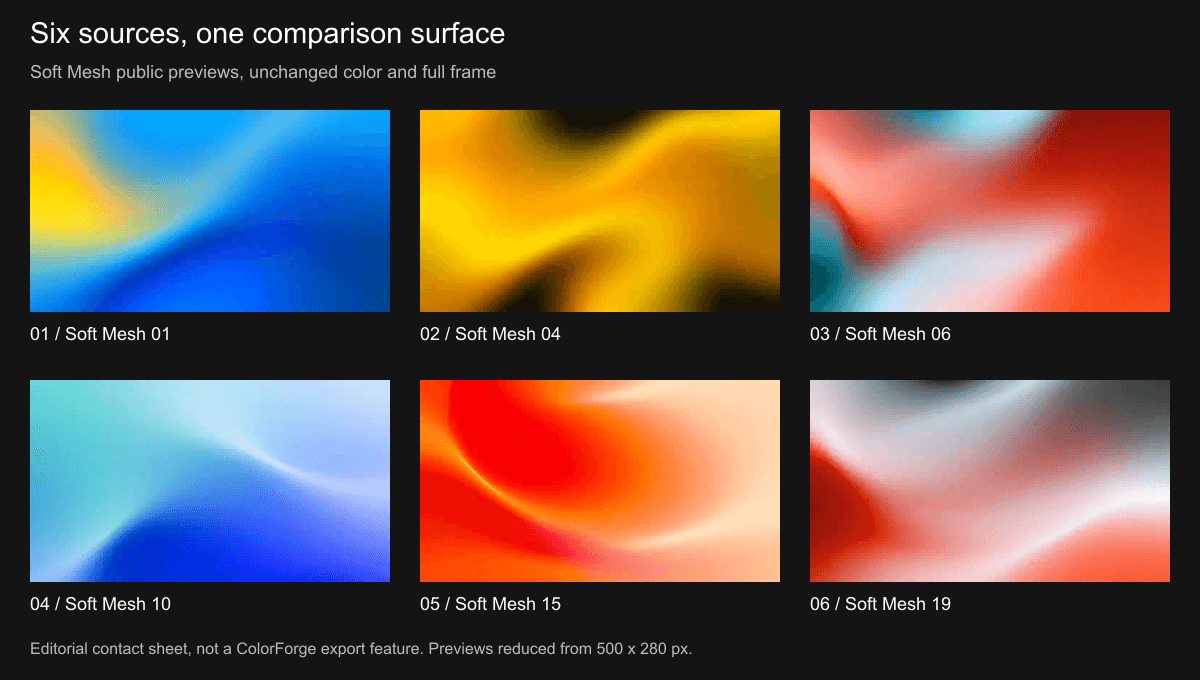
Editorial contact sheet prepared on 17 October 2026, using six 500 × 280 public catalogue previews. Each full frame was reduced to 360 × 202 with Lanczos3 in Sharp and placed on a 1200 × 680 PNG sheet. No recoloring, cropping or additional effects were applied. This is an offline editorial illustration, not a contact-sheet feature inside ColorForge, and it does not expose the protected originals.
The side-by-side view makes several differences visible. Soft Mesh 04 is dominated by yellow and dark regions. Soft Mesh 15 has a pronounced warm curved boundary. Soft Mesh 10 places pale cyan toward the upper left and deeper blue toward the lower right. Soft Mesh 06 and 19 both contain pale bands, but the surrounding color distribution is not identical.
Make an elimination pass before picking a favorite
For the hypothetical cool-background brief, put Soft Mesh 10 on the shortlist. Keep Soft Mesh 01 as a comparison candidate because its blue field includes a much stronger yellow interruption. Set the strongly warm 04 and 15 aside for this particular task. Those are brief-dependent decisions, not a ranking of which images are best.
Write a reason next to each retained name, such as broad cool field or stronger warm accent. Also record why an image was excluded. This avoids repeating the same browsing pass when someone later asks why a visually attractive candidate was not selected. A reason tied to composition is more useful than good or bad.
If the palette is editable, separate a color objection from a structural one. A warm candidate could still contain the right shape. Mark it as worth a recolor test rather than rejecting it permanently. Conversely, changing a palette will not move a bright band out of the space your layout needs.
Do not approve texture or sharpness from this sheet
These panels are reduced previews. They can support a first comparison of color distribution and large shapes, but not a final judgment of fine texture, banding or export sharpness. The contact sheet adds another reduction step, so inspect a selected source at the intended output size before approving it. Enlarging this figure does not reveal the original detail.
Keep a small selection record: exact asset name, source link, reason for selection, proposed crop and next test. A compact note such as Soft Mesh 10, cool field, test the upper-left placement is enough to make the shortlist actionable. Do not confuse that note with a completed layout or a verified readability test.
Move the shortlist into the real workflow
Open the remaining candidates in the actual placement and compare them with the same content. Then use ColorForge when you need to explore a palette or another released treatment. This sequence keeps the contact sheet as a selection aid instead of turning it into a substitute for the final composition.
Browse the Soft Mesh collection to build a different shortlist. Continue with the website hero selection guide for the layout comparison, or the image dimensions guide when preparing the selected source for a particular display size.
Conclusion
A useful contact sheet does not decide for you. It makes the first selection easier to compare, discuss and repeat. Keep the source names attached to the decisions, then leave detailed editing and final quality checks to the shortlisted images.
Related articles
Start with the whole library.
Choose yearly access or lifetime access, then browse, customize and export from one account.