Visual Workflows
How to use metallic imagery in a clean website layout
A chrome image can bring movement and material character to an otherwise quiet page. You do not need chrome buttons, reflective cards and metallic type to make it belong. Start by giving the artwork one clear place in the composition, then decide which surrounding elements genuinely need to echo it. The goal is a useful relationship between content and image, not a material effect repeated everywhere.
Gabriel Tognon
Designer, Developer & Template Creator
· 6 min read
Key Takeaways
Give the metallic image one clear role. Start with a bounded image and a separate reading surface, reuse the existing typography and spacing, keep actions consistent, and remove decorative echoes that have no specific job. Compare the result with real copy at wide and narrow widths.
Choose the image’s role before styling the interface
Decide whether the image introduces a collection, illustrates a project or provides a pause between sections. Those are different jobs. A collection feature may benefit from showing a broad view of the artwork. A small editorial card may only need a recognizable detail. Naming the job makes it easier to judge whether the visual is supporting the page or simply filling space.
Our example uses the already-public preview of Liquid Chrome 01. Its tightly folded lines, bright reflections and dark central areas already supply considerable variation. We kept that image unchanged and placed it inside two deliberately simple feature layouts. This exercise changes the surrounding design, not the source image.
Worked example: one chrome source, two quiet frames
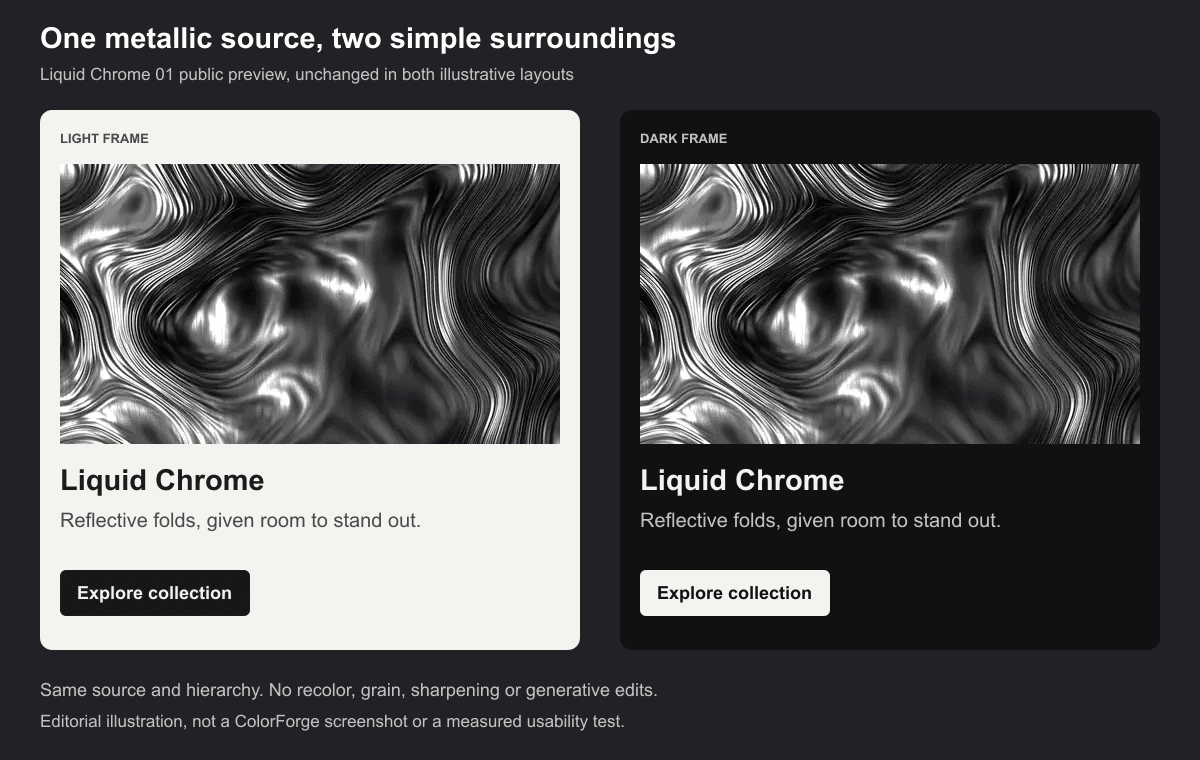
Illustrative editorial layouts prepared on 20 October 2026. Both panels use the same full-frame, unchanged 500 × 280 Liquid Chrome 01 public preview, shown at 500 × 280 inside a 1200 × 760 figure. The left panel uses a light surface, the right a dark surface. Labels and buttons are illustrative, not a shipped template, a ColorForge interface or a measured usability comparison.
Notice what stays constant: image dimensions, content order, heading, supporting sentence and one action. Only the surrounding surface and text colors change. That makes the comparison about the frame around the material, rather than a contest between different crops or effects. Neither treatment is a universal winner; choose the one that fits the rest of the actual page.
Keep the material inside a defined area
Begin with a bounded image instead of making the chrome cover every surface. In these examples, the image ends before the heading begins, so the reflection pattern does not continue behind the copy. The boundary gives you a straightforward place to adjust spacing and hierarchy without repeatedly editing the artwork.
A border, radius or shadow is optional, not a requirement for integration. Add one only if it helps the image sit within the established design system. If the surrounding page uses square editorial images, do not introduce a heavily rounded, glowing chrome card just because the source looks futuristic. The artwork can provide the expressive part while the container follows familiar page rules.
Use typography and spacing to connect the sections
Carry over the same heading style, text alignment, content width and spacing rhythm used elsewhere on the page. These shared decisions can make a visually unusual source feel intentional without copying its reflective texture into the interface. If the image seems disconnected, check alignment and scale before adding another effect.
Replace the example copy with the real collection name and a useful sentence before approving the layout. A short heading may leave generous space that a longer project name needs. Check the relationship again with real navigation and nearby sections, not only the isolated panel shown here. The diagram is a starting composition, not evidence that every surrounding page will work.
Let one action remain an ordinary control
The example button is a flat, clearly labelled shape. It does not imitate a reflective object. This is a practical starting point: keep navigation and actions consistent with the rest of the website, and let the artwork provide the changing highlights. If everything adopts the material, it becomes harder to decide which elements should lead.
Try a removal pass. Temporarily remove any metallic text effect, extra glow, ornamental border and repeated chrome thumbnail you added around the main image. Keep only the details that have a specific job. This is a design review technique, not a claim that minimal decoration always improves conversion or usability. Compare the actual alternatives with the page’s purpose in mind.
Review the layout before changing the source
Check the feature at a narrow width with the same real copy. If columns stack, preserve a deliberate reading order and enough separation between the artwork, heading and action. Then inspect the image at its intended display size. The public preview is sufficient to demonstrate these arrangements, but it is not a source-quality test or a substitute for checking the file you are entitled to use.
If you want text directly over a reflection, treat that as a separate placement problem. Check the actual background behind the complete text area, rather than assuming that silver is neutral or dark chrome is always readable. The background readability walkthrough explains that review. Our two examples avoid the overlap by keeping the text on separate flat surfaces.
Once the composition works, explore the Liquid Chrome collection for another source or use ColorForge to test a different treatment with the same layout held fixed. Change one decision at a time. The collection contains images, so a metallic appearance does not imply an editable 3D scene or a live reflective material.
For source selection rather than layout integration, read the Liquid Chrome selection guide. Keep the collection page for browsing and the guide for comparing source files. This layout exercise answers a different question: how to give a visually strong image room without turning every part of the website into the same effect.
Conclusion
A clean layout does not require a quiet image. It requires deliberate relationships. Let the chrome carry the material character, let the interface explain the content, and use a controlled comparison before adding more treatments. Start with one source and one feature, then judge how it belongs within the complete page.
Related articles
Start with the whole library.
Choose yearly access or lifetime access, then browse, customize and export from one account.